Manage Billing Details
Need to change your plan, view your billing history, or update billing information? Here’s a detailed guide to help you manage everything related to billing efficiently.
Switch Your Plan
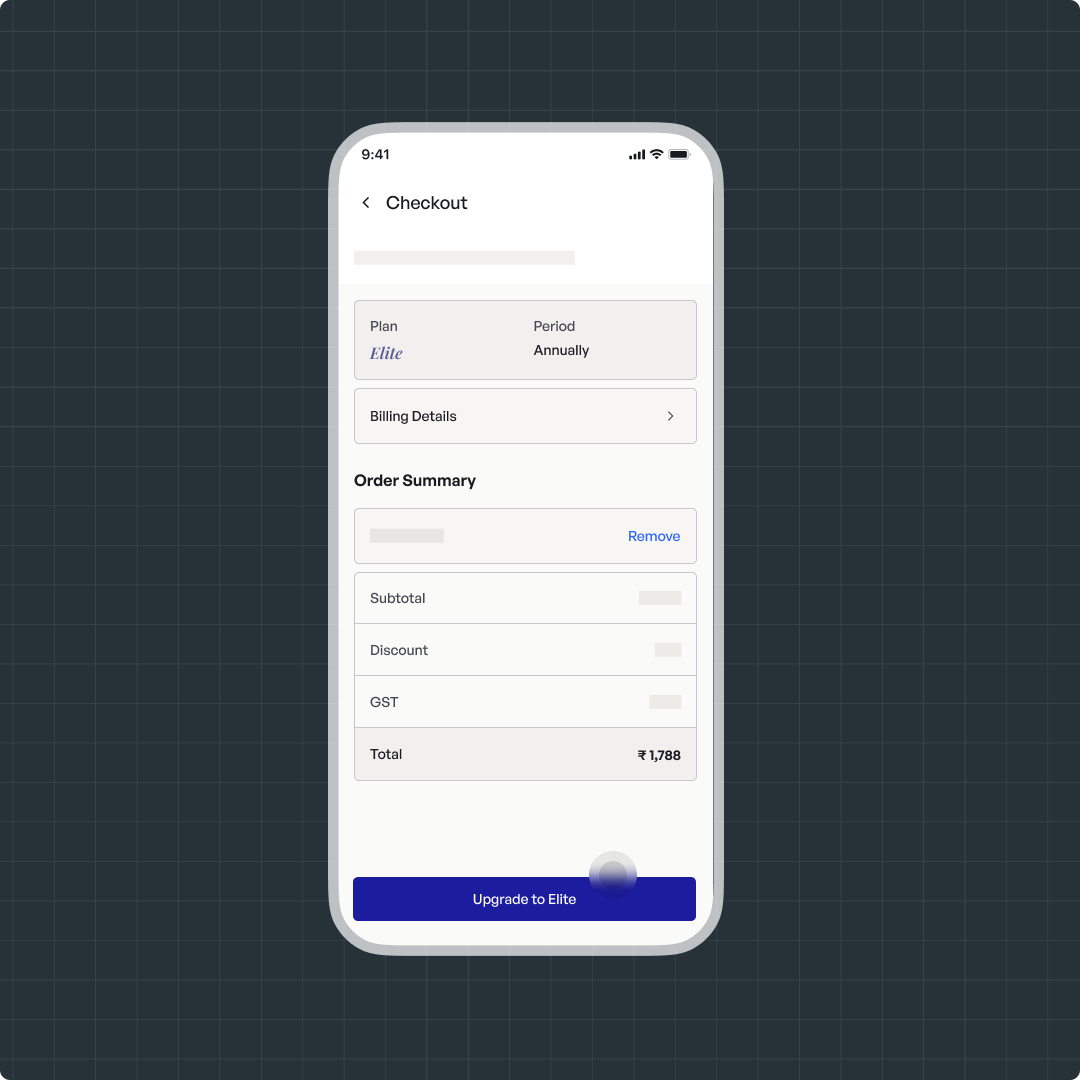
You can switch to a different plan at any time. When upgrading, any unused balance from your current plan will be applied to the new one based on the remaining days. You’ll only need to pay the difference. The new plan will take effect immediately, with billing based on the purchase date.
Web
Mobile
Web
Steps to switch a plan
- Navigate to Upgrade Plan

- Click on Change Plan

- Choose your Preferred Plan and Billing Period

- Update the Billing Details for a GST invoice (if needed)

- Click on Upgrade and proceed to pay

View your billing history
Use the steps below to view and download your billing statements.
- Navigate to Profile Icon > View Profile

- Go to Billing from the side nav bar and click on Billings history

- You can view the billing history and download the invoice from here.

Update billing details
You can update the name and place of supply on future invoices by editing your billing details. You can also include your GSTIN, legal name, and business address if applicable.
- Navigate to Profile Icon > My Account

- Scroll down and update the Billing Details

Mobile
Steps to switch a plan
- Navigate to Upgrade Plan
- Click on Change Plan
- Choose your Preferred Plan and Billing Period
- Update the Billing Details for a GST invoice (if needed)
- Click on Upgrade and proceed to pay
View your billing history
Use the steps below to view and download your billing statements.
- Navigate to Profile Icon > View Profile
- Go to Billing from the side nav bar and click on Billings history
- You can view the billing history and download the invoice from here.
Update billing details
You can update the name and place of supply on future invoices by editing your billing details. You can also include your GSTIN, legal name, and business address if applicable.
- Navigate to Profile Icon > My Account
- Scroll down and update the Billing Details
Need Assistance?
If you still have any further queries, you can raise a ticket to get in touch with us.